Name worksheets with accents and punctuation
Keep the spelling of a name intact, including accents, apostrophes, hyphens and capitals.
Keep a name’s accents, apostrophes and hyphens as part of its spelling. Open the private workbench before entering a personal name. The examples below are fictional.
Start with the spelling you intend
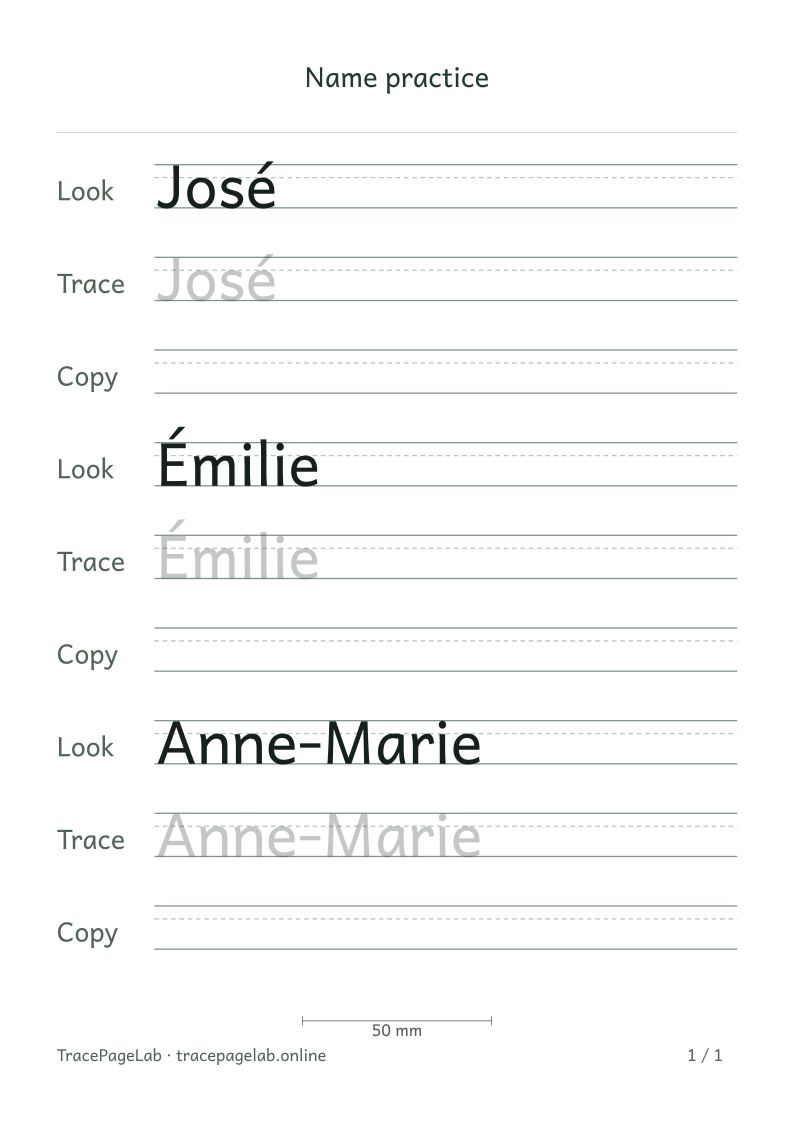
Check the acute accents and the hyphen in both the model and tracing rows.
The workbench preserves your letter case and keeps accents when it normalizes text. An e followed by a combining acute accent is stored as the equivalent é. José keeps its accent; it is not changed to Jose.
Inspect the selected font
The worksheet font, Andika, supports a wide range of Latin characters. If a character or combination is unsupported, the editor shows an error before you can export. Check the indicated characters and correct only accidental input.
| Example | Inspect |
|---|---|
| José | The accent above é |
| Émilie | The accent above the initial capital |
| Müller | Both dots above ü |
| François | The cedilla below ç |
| Muñoz | The tilde above ñ |
| O’Connor | The intended apostrophe |
| Anne-Marie | The hyphen between parts |
Resolve a missing-character warning
- Read which character or combination is unsupported.
- Check whether the input contains an accidental emoji or unusual symbol.
- Correct the text only when that is the intended spelling.
- If the required form cannot be rendered, stop and choose another suitable preparation method; do not accept missing boxes or silent substitution.
Check the page boundaries
After entering the name, check above and below every row. An accent needs room above its letter, just as a g or y needs room below the baseline. Look at the first and last rows as well as the middle of the page.