Make your first handwriting worksheet
Make a name worksheet from start to finish, then download a PDF or save an editable project.
Make your first name worksheet with José as a fictional sample. You will choose the rows and paper, check the preview and download a PDF. Replace the sample with your own text when you are ready.
1. Open the private workbench
Choose the name worksheet maker, then select Use this worksheet. Wait for the private workbench to load before typing a personal name. Your text is processed on your device.
Start from the name worksheet maker
2. Add your text
In Content, keep José or enter the name you want to print. Leave Keep as entered selected for now. Check the spelling and the accent above é before moving on.
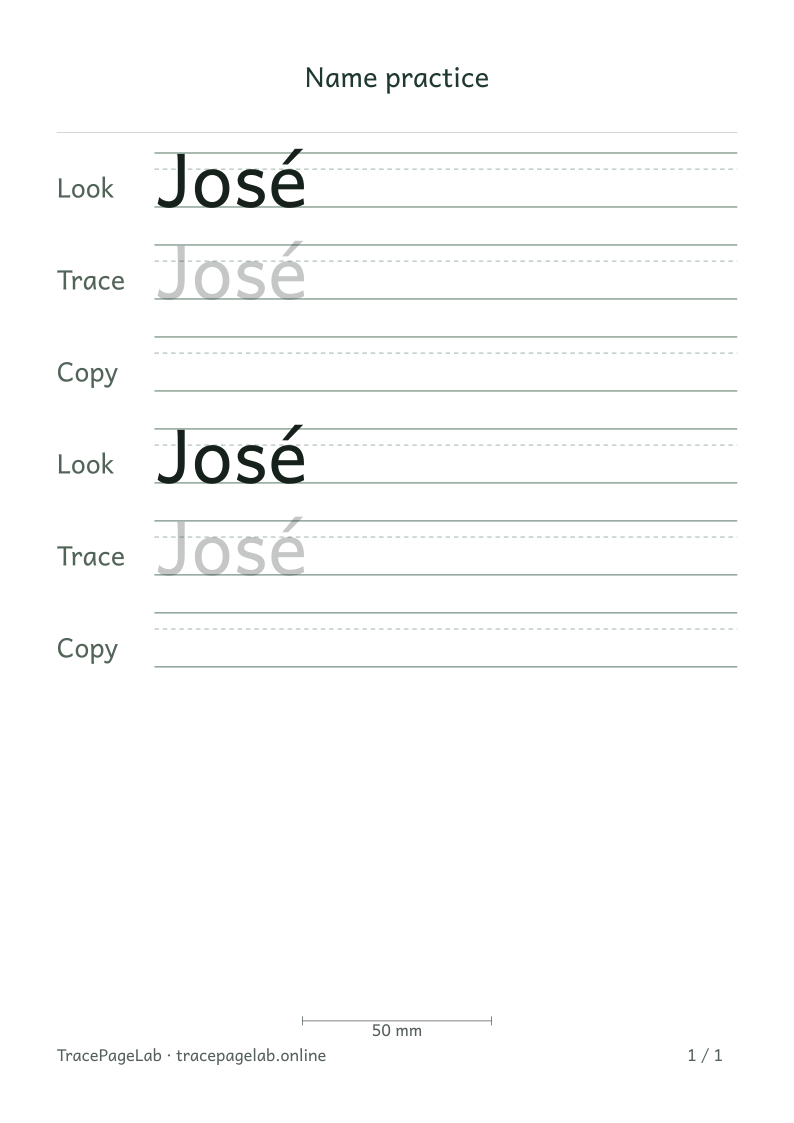
José is a fictional sample name. Check the accent on each model and tracing row.
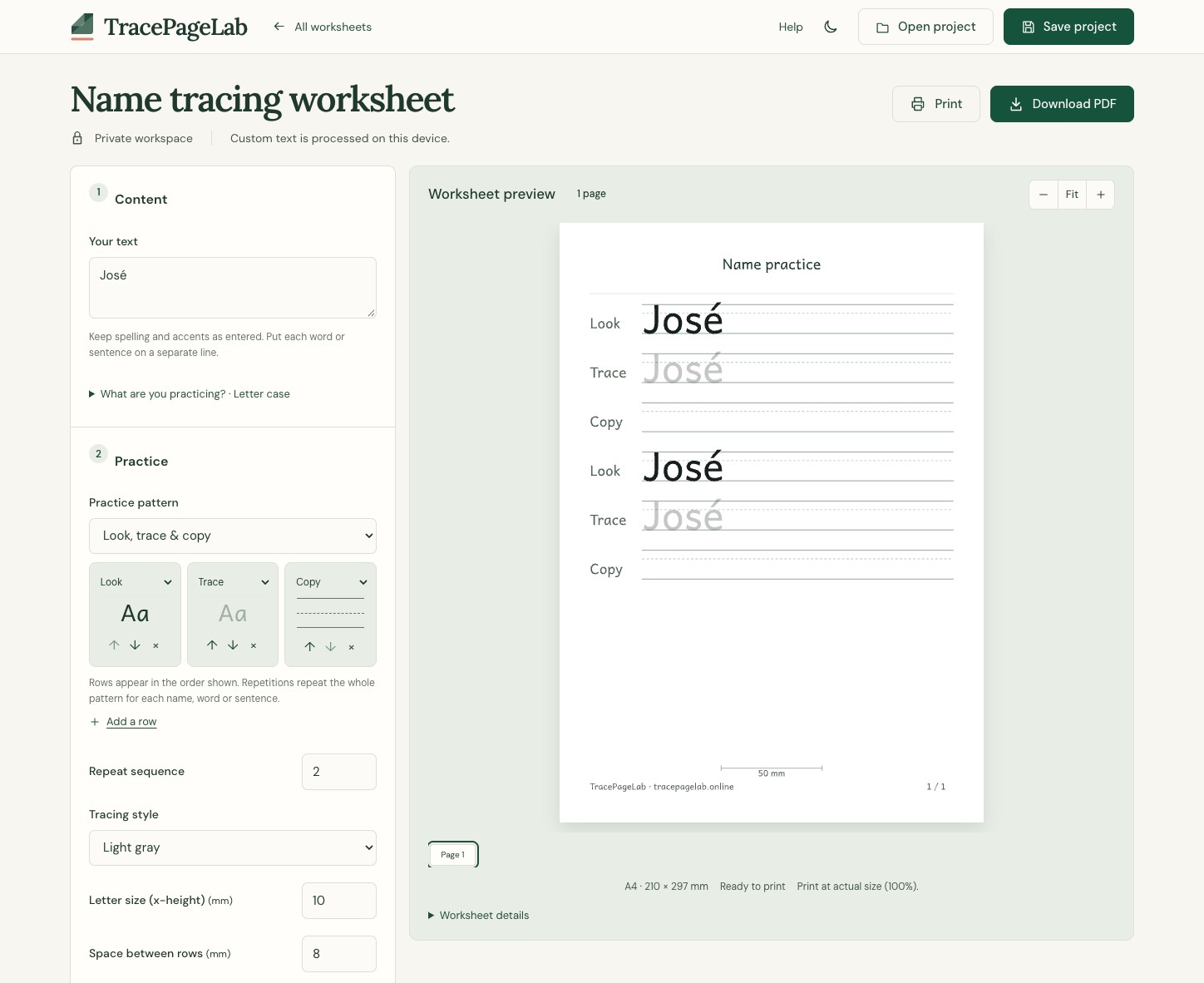
Find the four editor sections
- ContentEnter your text at the top of the left column. Keep the spelling and accents you want to print.
- PracticeChoose the row order, repetitions, letter size and spacing below Content.
- PaperScroll down the controls for paper size, units, margins and page layout.
- ExportPrint or download PDF, SVG and project files below Paper. Print and Download PDF are also at the top of the editor.
If you see an unsupported-character message, check the listed characters for an accidental symbol. Keep the intended spelling. The editor will wait for the issue to be resolved before allowing an export.
3. Choose the practice rows
Choose Look, trace & copy with two repetitions. For this short name, that gives six rows: a solid model, light tracing and an empty copy row, then the same three again.
| Row | Expected sample |
|---|---|
| 1 | Solid José |
| 2 | Light-gray José |
| 3 | Blank guidelines |
| 4 | Solid José |
| 5 | Light-gray José |
| 6 | Blank guidelines |
The row pattern decides what appears on the page. Letter size changes the scale, while Space between rows gives the writing more room. Change one setting at a time to see its effect.
4. Choose paper and spacing
Choose the paper in your printer. For this sample, try A4 portrait, 15 mm margins and a 10 mm letter size. Check that the accent is fully visible and that the rows leave enough room to write.
Understand the baseline and other guidelines
5. Review and export
- Inspect every page and confirm the full name appears in all text rows.
- Check that blank rows are empty and the final row fits inside the margins.
- Resolve any unsupported-character or overflow message.
- Use Print to open the printer dialog, or Download PDF to create a separate file.
- Choose the matching paper and actual size when printing.
Zoom changes only the screen view. Your PDF and SVG keep the chosen paper size and contain the worksheet without the editing controls.
Keep or clear the work
Use Save project to keep the text and settings editable. Unsaved text is lost when you reload or close the page. Use Clear workspace when you finish on a shared device, and manage downloaded files separately.