Name tracing worksheet maker
Make a name worksheet with room to trace and copy. Keep the spelling, accents and capitals you enter.
Customize this sheet in the private workbench. Your text is processed on your device.
The sample uses A4. Choose US Letter or a custom paper size in the workbench.
These sheets use Andika print letters. For stroke order, follow the handwriting model you use at home or school.
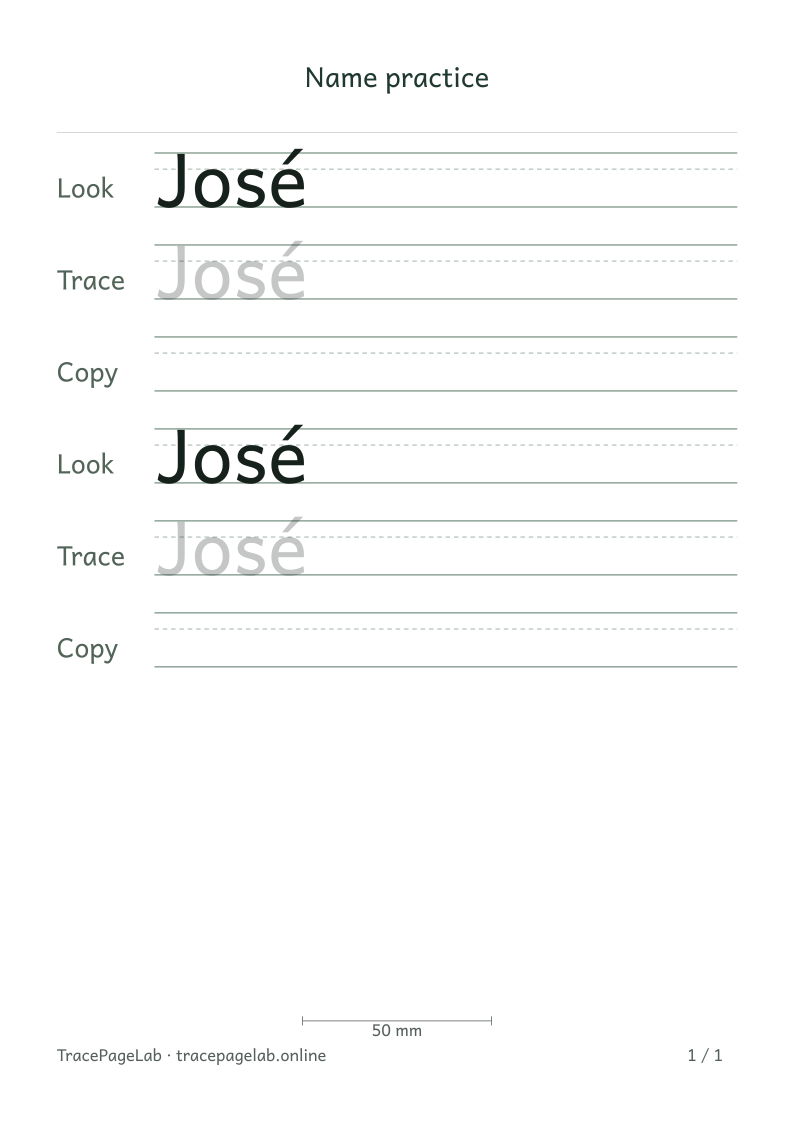
Try the fictional name José, then open the private workbench to enter your own. Choose the rows, size and spacing that give the name enough room on the page.
Print this sample, or open it in the workbench to change the text and layout.
Make the worksheet
- Open the private workbench before entering personal text.
- Replace the sample name and check every accent, apostrophe, hyphen and capital.
- Choose Look, Trace and Copy rows and set the repetition count. Copy rows leave blank writing space.
- Choose letter size, spacing and paper. If a name is too wide, use an explicit fit choice or a wider page.
- Inspect every preview page, then use Print or Download PDF.
Choose the space the task needs
Keep the full spelling when a name is too wide. Try landscape paper or uniform shrinking. A name with spaces can wrap at those spaces; a single long word may need more page width or a smaller letter size.
Before you print
Check accents, apostrophes and hyphens as well as the first and last letters. The fictional samples José, Émilie and Anne-Marie show details to look for before printing.
| Output | Use it for |
|---|---|
| Open the browser print dialog and choose matching paper and actual size. | |
| Download a separate vector file to print or keep locally. | |
| SVG | Keep self-contained vector pages for a compatible local application. |
| Project file | Save the editable text and settings in a local JSON file. |
Create your first custom worksheet
Questions about this worksheet
Can I make a first and last name on the same sheet?
Yes. Enter the full name on one line. Spaces give the wrap setting a place to break a long name. For an unbroken name that is too wide, try landscape paper or uniform shrinking, then check that the letters are still a useful size.
Can I keep accents, apostrophes and hyphens?
Keep the spelling exactly as intended, including characters such as é, ñ and the apostrophe in O’Connor. Review the preview for the full accent or punctuation. If a character is unsupported, the workbench shows an error before export.
Can I use the same name sheet again later?
Use Save project to keep an editable local JSON file, and Open project to restore it. Download a PDF as well if you only need to print the finished sheet again. The workbench does not automatically save the name when you close it.