Save and reopen a worksheet project
Save an editable worksheet project, reopen it and understand file-compatibility messages.
A project file lets you return to the same words, row pattern and paper settings without starting again. Save it as a local JSON file, then reopen it in the workbench when you want to edit. A PDF or SVG is the finished worksheet.
What a project contains
| Information | Why it is included |
|---|---|
| Text entries and case choices | Preserve the intended words, spelling and order |
| Row pattern and repetitions | Recreate model, tracing and blank rows |
| Paper, margins and size settings | Rebuild the physical layout |
| Layout mode | Distinguish row sheets, cards and drawing-box pages |
| Font identity and hash | Detect a font change that could alter letterforms or metrics |
| Schema and shaping versions | Check whether the application can interpret the file consistently |
The project includes your text. Check its contents before sharing it, and keep it somewhere suitable for personal information. The generic filename does not hide the words inside.
Save an editable sample
- Open the private workbench and prepare the fictional example José.
- Choose the row pattern and paper settings, then review the preview.
- Use Save project to download the JSON file.
- Keep the file in a local folder you can find again.
- Download PDF separately if you also need a finished printable version.
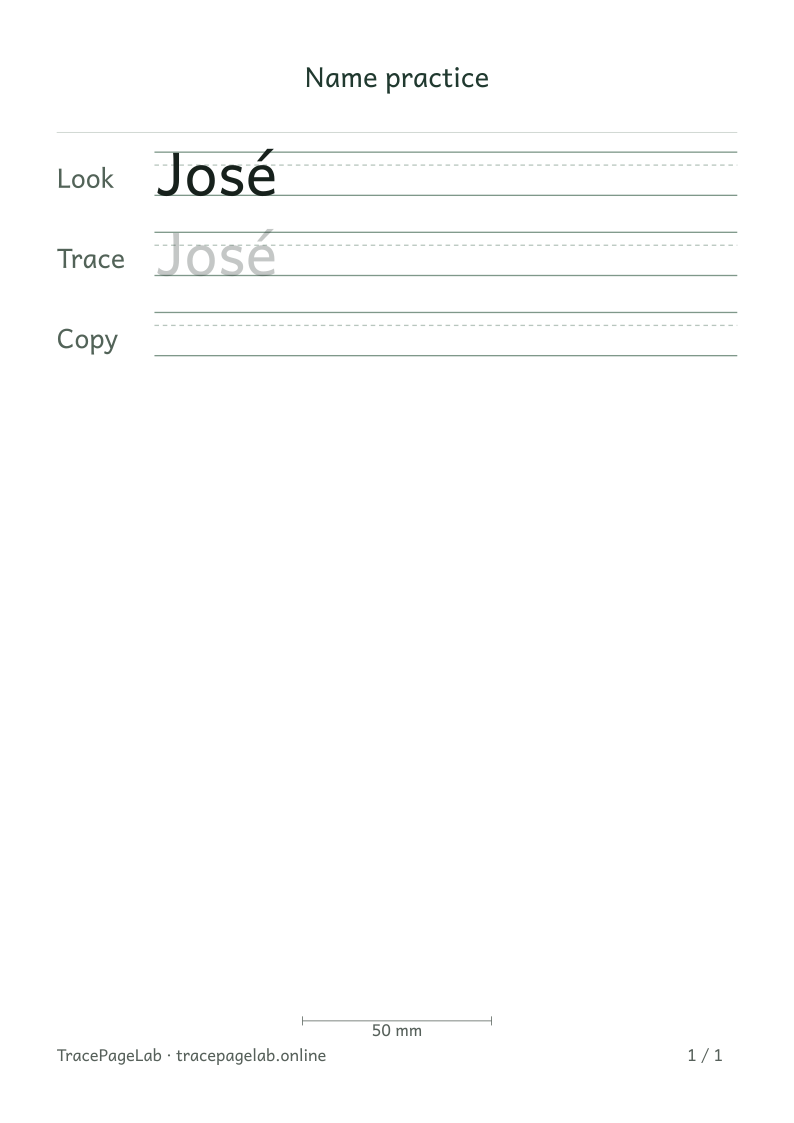
Download this sample project and open it in the workbench to try restoring a worksheet. It contains the fictional name José.
Restore in the private workbench
Open the workbench, choose Open project and select your saved JSON file. The editor checks its format, size and compatibility before rebuilding the preview. It processes the file on your device.
After opening the project, check the words, paper size and page count. Step through the preview pages to confirm the rows and spacing.
Handle a compatibility message
| Message or situation | What to do |
|---|---|
| Invalid JSON or missing fields | Use a complete project exported by the application. A PDF renamed to .json is not a project. |
| Unsupported schema version | Keep the original file and use a compatible application version; do not remove the version field. |
| Font identity or hash mismatch | Restore the matching font/application release or use an explicit reviewed migration. |
| File or page limit exceeded | Use a smaller, valid project and review the requested content. |
| Unsupported characters | Inspect the indicated text instead of accepting silent substitutions. |
Font updates can change the way a worksheet fits. If a version or font check fails, keep the original file and use the matching release. Editing a version number to bypass the message can give you a different layout.
Use an invalid-version example safely
The invalid-version sample below is for trying the error message. It contains fictional text and should be rejected by Open project. Use one of the working project downloads when you want an editable worksheet.
Clear the workspace and manage copies
Clear workspace removes the current text from the editor. It leaves downloaded projects, PDFs and printed copies untouched. Save a project before closing if you want to continue later, then delete old copies from your device when they are no longer needed.
Read the privacy boundaries for custom worksheets