Fit a long name on a worksheet
Fit a long name by changing page width, wrapping or letter size while keeping its spelling.
A name’s width depends on its letters as well as its length. A short name with wide letters can take more room than a longer, narrower one. Use the preview to decide how to fit it.
Read the complete entry
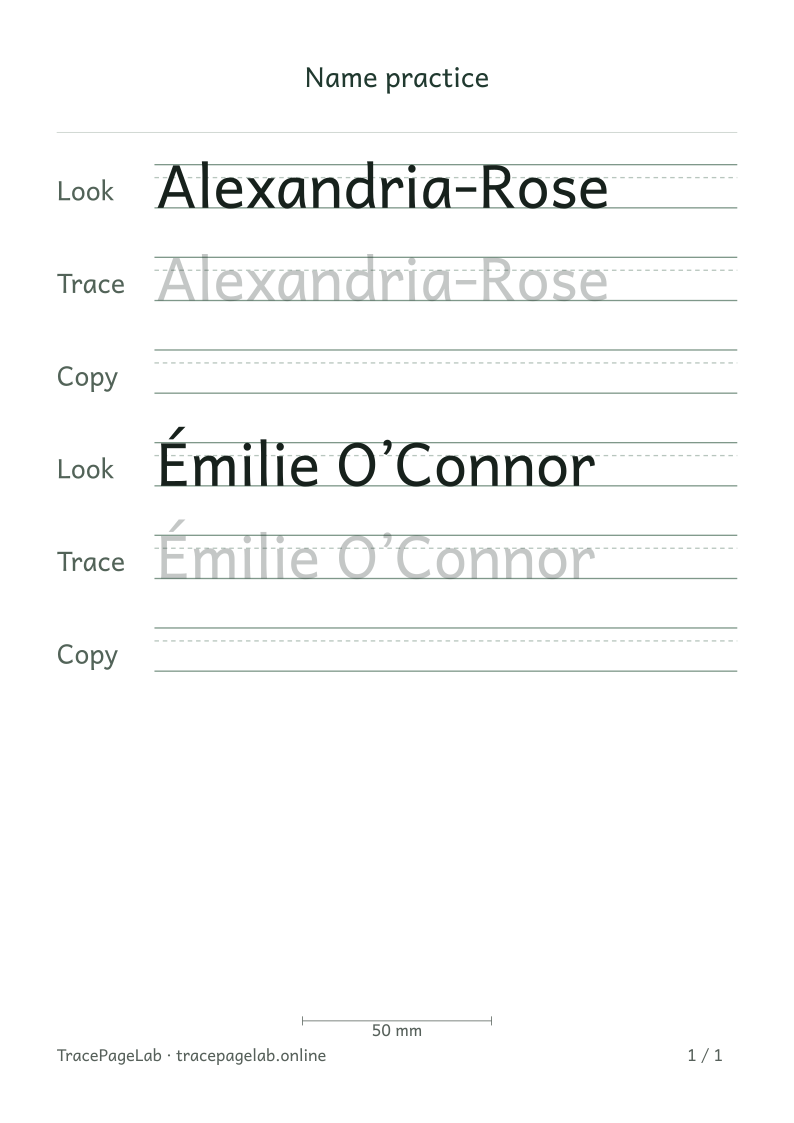
Both examples include details that must survive fitting: the hyphen, accent and apostrophe.
Check for an accidental extra space or line break first. Keep the intended spelling, including accents and hyphens. Then change the available page width or letter size.
Choose the right kind of fit
| Situation | Possible choice | What to review |
|---|---|---|
| A phrase or spaced name | Wrap at spaces between words | Every part remains in order on the next line. |
| A wide unbroken word | Use a wider page or landscape orientation | Margins and the printer’s supported format. |
| A slightly oversized entry | Choose Shrink uniformly if needed | The new letter size remains useful and above the minimum. |
| Too little space remains | Reduce repetitions or adjust the layout | No rows or characters disappear. |
Uniform shrinking has a limit
Shrink uniformly if needed makes the text smaller in both directions, keeping the letter proportions. It will not go below the minimum size you set. If the name still does not fit, try landscape paper or a different layout.
Check more than the right edge
- Read the first and last characters of every line.
- Look above capital letters for accents and dots.
- Look below the baseline for descending parts.
- Check page transitions and the final row.
- Export only after the overflow message has been resolved.
Keep a reusable source
When the page looks right, save a project if you want to edit it later. The file includes the name and settings. Check the preview again if you change paper size, since wrapping and page count can change too.