Choose a handwriting letter size
Choose a printed letter size and leave enough room for capitals, accents and lower tails.
Letter size uses x-height: the height of a lowercase x on the printed page. The setting is shown in millimeters by default. To use inches, change Measurement units in the Paper section. Capitals, tall letters and lower tails extend beyond that height, so they need extra space.
Start with one representative sample
Try a sample with several kinds of letter. José includes a capital and an accent; jumping includes tall letters and lower tails. Compare those with x to see how much room the full shapes need.
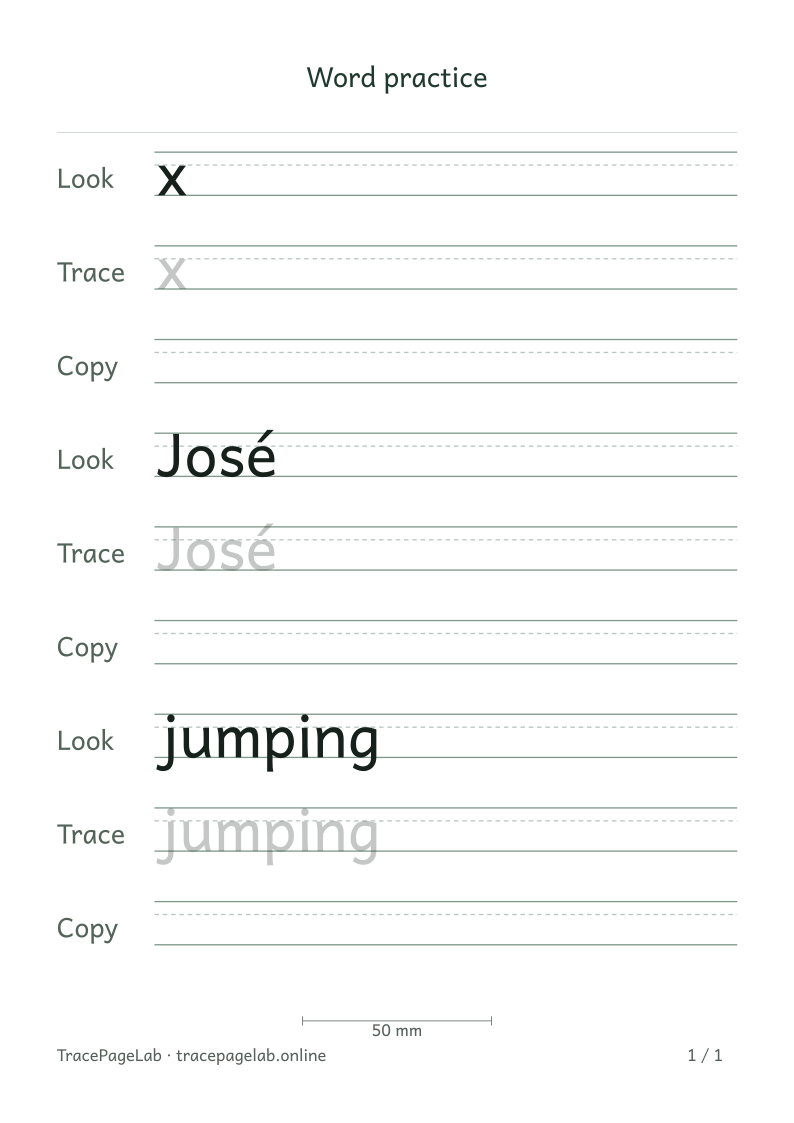
All three use the same letter-size setting. Capitals, accents and lower tails reach beyond the body height.
Separate letter size from row spacing
| Setting | Changes | Does not change |
|---|---|---|
| Letter size / x-height | The printed size of the letters | The spelling or intended paper size |
| Space between rows | The room between neighboring rows | The word’s letterforms |
| Preview zoom | The view on your screen | The printed page dimensions |
Increasing letter size enlarges the capitals, accents and lower tails too. If neighboring rows feel crowded, add space between rows. If the page becomes too long, use fewer repetitions or let the sheet continue onto another page.
Choose a practical starting point
Start with the preset size, then print a sample and see whether the writing space is comfortable to use. The right size depends on the writer and the task; the presets are not age-based recommendations.
Review after a size change
- Check the longest entry against the usable page width.
- Inspect dots, accents and descending parts.
- Check the last row on each page and the new page count.
- Print at actual size so the measurement you chose remains meaningful.