Print the same worksheet on A4 and US Letter
Use one word list to make separate A4 and US Letter versions, with a print check for each.
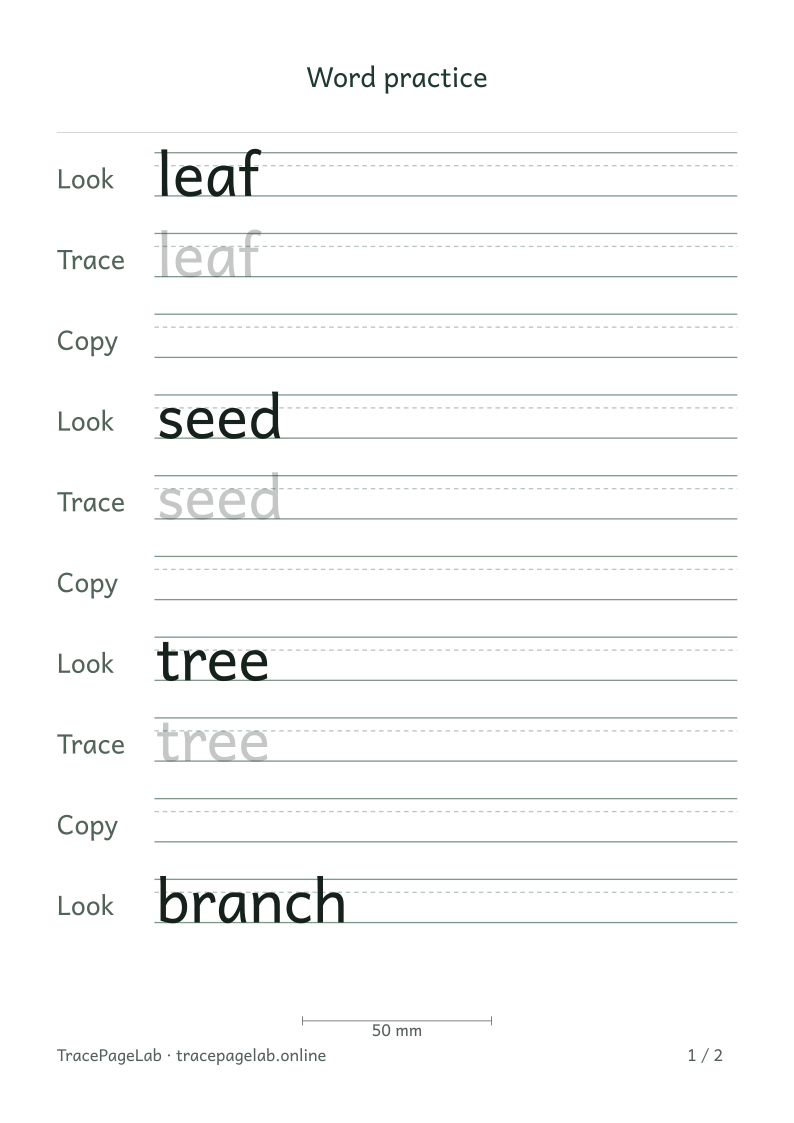
Keep this spelling and order in both variants. The paper setting may change wrapping and page count.
Choose an SVG page to download
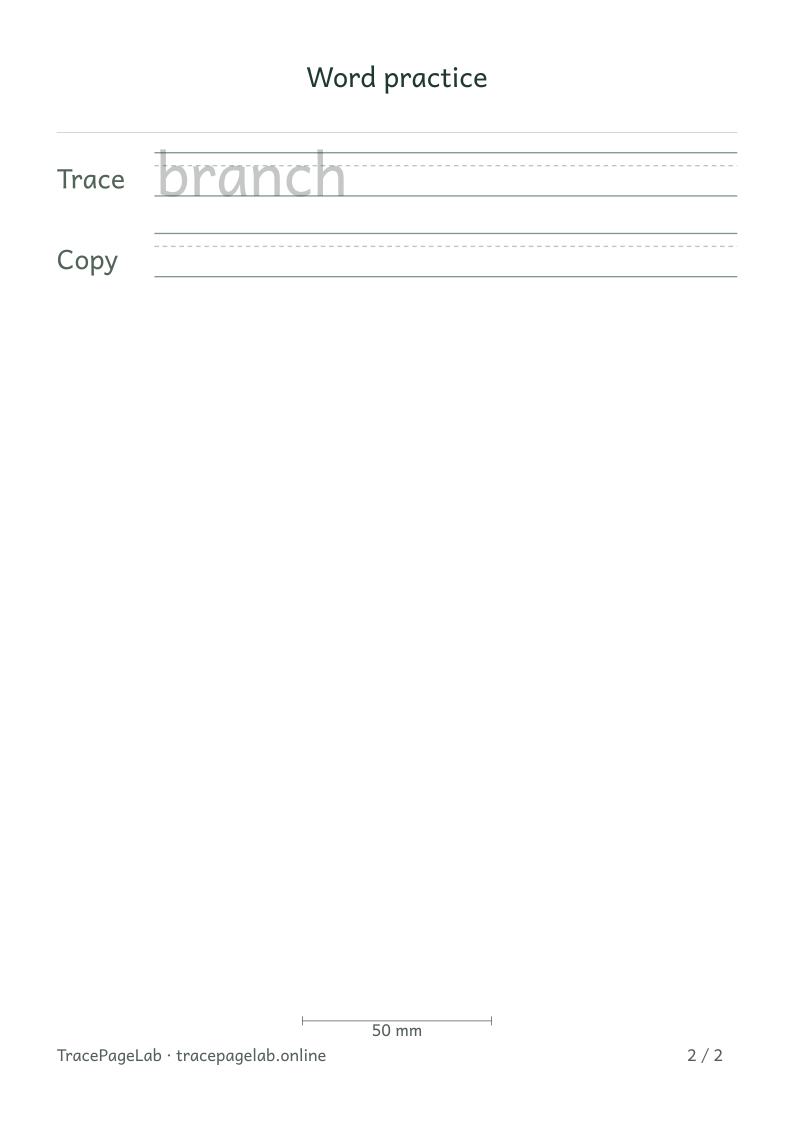
If a worksheet will be printed on both A4 and US Letter, prepare a version for each. The sizes are close, but they have different widths and heights. Use leaf, seed, tree and branch to compare the same words on both.
Prepare the source worksheet
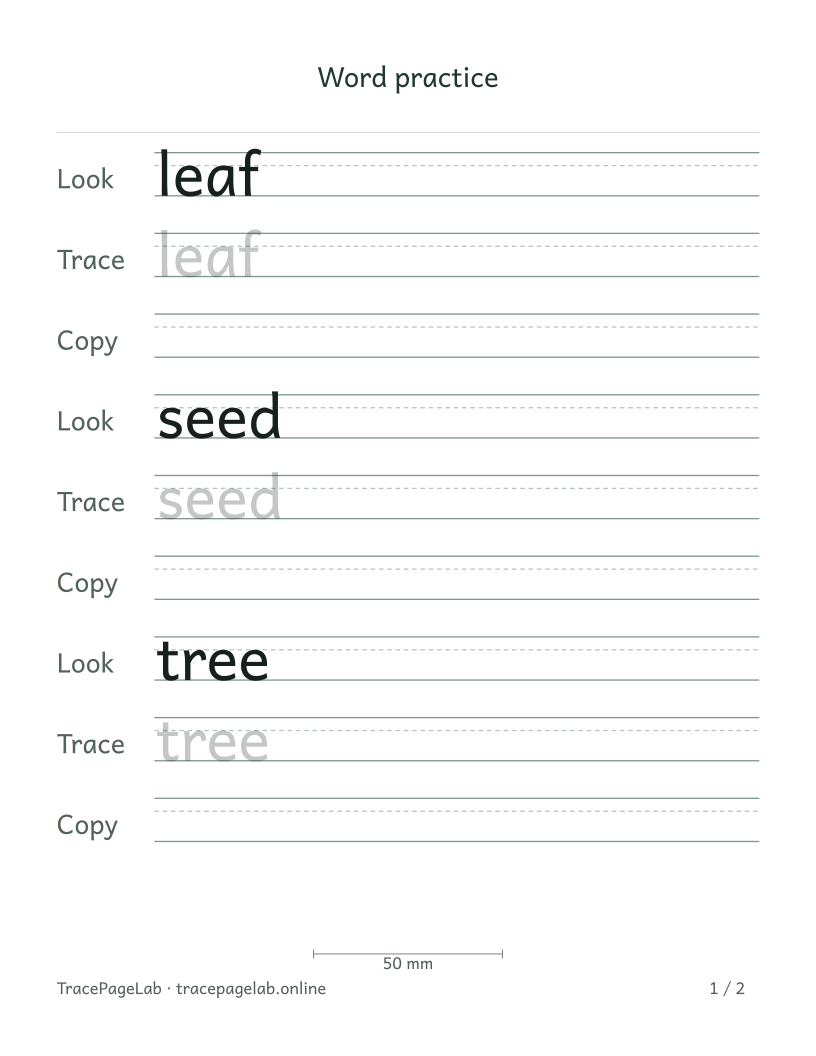
US Letter is 215.9 × 279.4 mm in portrait. Review this separately from the A4 version; paper changes can alter pagination.
Choose an SVG page to download
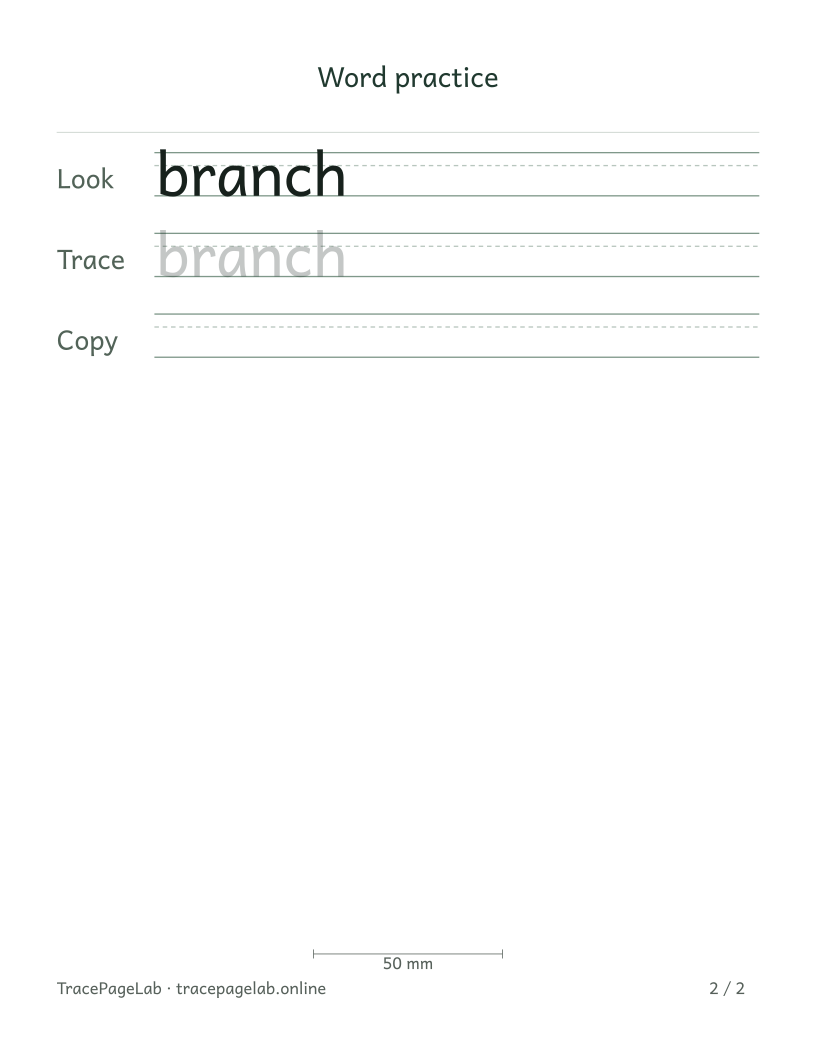
Open the word maker and enter the four words in order. Try an 8 mm letter size with one Look–Trace–Copy sequence per word. Choose the margins and row spacing, then save a project so you can reuse the setup.
Compare the paper dimensions
| Format | Portrait dimensions | What differs |
|---|---|---|
| A4 | 210 × 297 mm | Narrower and taller than Letter |
| US Letter | 215.9 × 279.4 mm | Wider and shorter than A4 |
A phrase may fit on one line in one format and wrap in the other. Row groups can also move onto another page when the paper is shorter. Check both versions rather than trying to make their page breaks match.
Make and review the A4 version
- Choose A4 in the workbench.
- Inspect the complete word list and every page boundary.
- Check the first row, last row and any descenders.
- Download the PDF and retain the matching local project if you need an editable A4 variant.
Switch to US Letter
Switch the paper preset to US Letter and wait for the new preview. Keep the same words, then check every page again. If you want a shorter pack, adjust the row pattern or repetitions and review the result.
Save the two exports in A4 and Letter folders, or add the paper size to their local filenames. The downloaded names are generic; you can rename them on your device.
Print one sample of each
- Select the matching paper in the print dialog.
- Use actual size or 100%, rather than an automatic fit setting.
- Check the 50 mm bar with a physical ruler.
- Inspect the outer margins and the final writing row.
- Keep only the variants that you have reviewed for the intended printer and paper.
Update both variants from the same source
When you change the list, reopen the project and export both paper sizes again. Keep the word order the same so it is easy to check that each version contains the latest list.
Read the actual-size printing guide